
Is your aging Windows machine slowing down? Getting creaky?
Just plain showing its age? Here's how to make it work the way it did fresh out
of the box.
From the March 2005 issue of PC World magazine
 Windows
sludge: It's the invisible, undetectable detritus that collects on your hard
drive and just mucks up the works. In the past, the clean install of a Windows
upgrade could solve in one fell swoop all the little glitches that accumulate
over time. But Longhorn's still a ways off, and service packs only go so far.
I'll show you how to get Windows 98, Me, 2000, and XP back to their quick and
reliable selves. And I'll describe how to toss an unfixable Windows setup and
reinstall it from scratch.
Windows
sludge: It's the invisible, undetectable detritus that collects on your hard
drive and just mucks up the works. In the past, the clean install of a Windows
upgrade could solve in one fell swoop all the little glitches that accumulate
over time. But Longhorn's still a ways off, and service packs only go so far.
I'll show you how to get Windows 98, Me, 2000, and XP back to their quick and
reliable selves. And I'll describe how to toss an unfixable Windows setup and
reinstall it from scratch.
In This Article
A Windows Treatment
 If Windows stumbles but doesn't fall, your PC likely needs only
refurbishing, not a full operating system makeover. In fact, machines with
startup problems can usually be repaired without a last-gasp reinstallation. (Of
course, if your PC experiences problems before Windows loads, chances are they
have nothing to do with the OS; click here
to read Kirk Steers' "Five-Minute Fixes" from January.) Follow these
steps to reinvigorate your current Windows setup.
If Windows stumbles but doesn't fall, your PC likely needs only
refurbishing, not a full operating system makeover. In fact, machines with
startup problems can usually be repaired without a last-gasp reinstallation. (Of
course, if your PC experiences problems before Windows loads, chances are they
have nothing to do with the OS; click here
to read Kirk Steers' "Five-Minute Fixes" from January.) Follow these
steps to reinvigorate your current Windows setup.
Cut Back on Autoloads
You may be amazed at just how many programs load
automatically at Windows boot-up and then run in the background as you work (not
all of them appear as icons in the system tray, either). Each of these programs
uses memory and other resources, which might even cause a conflict with another
program.
To view your list of autostart apps, select Start, Run,
type msconfig, and
press Enter to open the System Configuration Utility. (Windows 2000 lacks
this utility, download Mike Lin's free Startup
Control Panel alternative for that OS.) Click the Startup tab (see FIGURE
1). Uncheck items in this list to keep them from autoloading.
Windows 2000 needs no autoload programs, and Windows XP
requires only one--sort of. If you don't use Microsoft Messenger, you may want
to uncheck 'msmsgs', but doing so can cause problems with Outlook, Internet
Explorer, or other Microsoft programs. Windows 98 and Me have several
autoloading applications. In these versions, keep LoadPowerProfile, SystemTray,
ScanRegistry, PCHealth, and TaskMonitor selected (including both instances of
the first one if it's listed twice, which can occur as part of Windows' boot
process). If you use Windows' Task Scheduler, don't uncheck SchedulingAgent (to
find out whether a program is using the applet, select Start, Programs,
Accessories, System Tools, Scheduled Tasks and see if anything is listed).
For Windows Me, keep StateMgr.
Determining whether you need your other autoload apps
requires a bit of detective work. You can usually figure out what application
put the entry in your startup list by reading the information in the Startup
tab's Command column. For instance, if you see that the loading file is located
in the Roxio folder, it's a good bet that the entry is a Roxio program. Google
can also help ferret out the source of these programs; if you search for the
file name, you're bound to find an explanation.
Keep checked any listing related to your firewall or your
antivirus program to make sure they're always running in the background. On the
other hand, some autoloaders put an icon in the system tray for launching an
application that you could just as easily launch from the Start menu. Having
these programs autoload is a waste of resources, so uncheck away.
Sometimes it's a judgment call: If a utility enhances
Windows in a way you like, running it at all times could be worthwhile. The four
programs recommended in "Longhorn's
Features--Now" fall into this "maybe for you" category. But
even then, if Windows gives you trouble, consider disabling such a program--at
least temporarily--to see whether it's the culprit; life may be better without
it.
Unfortunately some unchecked programs have a way of
reappearing checked and autoloaded, even though you just unchecked them. Why?
The application that installed the autoloading program sees what you've done,
and responds by "correcting" your mistake. (Older versions of Real
Networks' media player are known offenders.) If this happens to you, unchecking
the option will just create a cycle of frustration. Instead, launch the
application and explore its menus, looking for a "load at startup"
option. When you find it, uncheck it.
If you don't find such an option, check the vendor's Web
site, or as a last resort call its technical support line. If you discover that
there's no way to turn off the autoloader, and you have no good reason to leave
it on, ask yourself how badly you want that program on your PC--which brings us
to our next section.
Uninstall Unused Apps
A program doesn't have to be running to mess up Windows'
performance. Getting rid of all the applications on your PC that you no longer
use is a good idea. Doing so isn't always easy, however.
Most programs have their own uninstall routine.
Unfortunately, these routines seldom remove everything. All too often installing
a program gives you both benefits and problems, and uninstalling it removes only
the benefits. I sometimes suspect that software developers write installation
routines on the assumption that you bought your computer to run their software
exclusively, and they create uninstall routines only because they have to--while
reassuring themselves that no one would ever want to use the feature to remove
their programming masterpiece.
Nevertheless, the program's own uninstall routine is the
best place to start the removal process. You might find a shortcut to the
uninstaller on the program's Start menu entry. If not, select Start, Control
Panel, Add or Remove Programs (in Windows XP) or Start, Settings, Control
Panel, Add/Remove Programs (in all other Windows versions). Find the program
you want on the 'Currently installed programs' list (under the Install/Uninstall
tab in Windows 98), click the Add/Remove or Change/Remove button
(see FIGURE
2), and follow the prompts.
You haven't really gotten rid of the program yet. Reopen
the System Configuration utility to see whether the uninstalled application
still autoloads anything; if it does, follow the steps in "Cut Back on
Autoloads" above. Next, open Windows Explorer and delete the program's
folder inside the C:\Program Files directory (if it's still there). And if a
shortcut to the program is still on the Start menu, right-click the item and
then select Delete.
To reassign any file associations that the uninstalled
program may have claimed, open Windows Explorer, select Tools, Folder Options
(View, Folder Options in Windows 98), and click the File Types tab
and then the File Types header under 'Registered file types' to sort the
list of file types by program (this header isn't available in Windows 98). Check
the list for any extensions associated with the uninstalled program. If you find
one, click Change and select a new program to open that file type. For
example, if you uninstall an image editor, you can reassociate .bmp files with
Windows' own Paint utility. Or click Delete to make .bmp an unassociated
file type. Then you'll be prompted for which program to use each time you
attempt to open a file of this type.
You'll also want to clean the program out of the Windows
Registry. (See "Pare
the Registry" below for instructions.)
Ferret Out Spyware
You need to scan your system for spyware regularly, but
it's especially important to do so when Windows behaves oddly (well, more oddly
than usual).
No anti-spyware program I've used finds all the
miscreants, so you should run more than one scanner. Fortunately, two of the
best are free: Lavasoft's Ad-Aware and Patrick M. Kolla's Spybot Search &
Destroy. Click here
to download these and other popular (and free) spyware catchers. Get the latest
updates for the programs after you install them and before you scan your system.
SpywareGuide (www.spywareguide.com;
see FIGURE
3), provides valuable information on malicious software from a database
covering more than 800 known spyware programs. Read Steve
Bass's tips on finding--and blocking--spyware.
Conventional wisdom urges us to frequently update our
drivers--the programs that tell Windows what to do with hardware. Of course,
conventional wisdom once held that the world is flat.
If your PC is running well, there's no reason to update
your drivers. But if you're having trouble, a driver update might help. First,
open Windows' Device Manager by right-clicking My Computer and selecting Properties.
In Windows XP and 2000, click Hardware, Device Manager. In Windows 98 or
Me, click Device Manager.
Look for entries with yellow question marks or red
exclamation points: The question mark indicates that Windows is using a generic
driver for that device instead of one designed for it, and an exclamation point
means that the device is not working. The drivers for graphics boards, sound
cards, and printers are most likely to need an update. Drivers under 'Computer',
'Disk drives', 'Floppy disk drives', and 'Keyboards' rarely require updating.
To update a driver, double-click the component listing
and choose Driver, Update Driver in the product's Properties dialog box
(see FIGURE
4). The Hardware Update Wizard will search for an updated driver on your
local drives as well as on Microsoft's Windows Update site, and it will install
the driver if it finds one.
Even if the wizard doesn't find one, a driver update may
be available. Search for a new version on the vendor's Web site, or enter the
full product name plus the word driver
in a search engine. When you find an update, make sure it works with your
version of Windows. Either the new driver will install automatically after you
download and run it or it will provide you with installation instructions.
Updating a driver could make things worse, however. In
Windows XP, click Roll Back Driver under the Driver tab in the Properties
dialog box to return to the previous version. If you regret updating a driver in
98, Me, or 2000, your only option is to replace it with a generic driver (at
least until the vendor releases a bug fix).
There's no bigger rat's nest on a well-used Windows
system than the Registry. Whenever you install software, change hardware, or
download something from the Web, you pour gunk into this vast, loosely
constructed database that Windows relies on to work properly. Cleaning it out
can make a world of difference in Windows' performance. Before you start, make
sure you can restore the Registry to its previous state should you delete the
wrong key. Windows 98, Me, and XP (but not 2000) back up the Registry
automatically, but it doesn't hurt to make an extra backup before doing
something that could hose your PC. With your personal data, it makes sense to
store the backup at another location, but that's not the case with the Registry
backup. If your hard drive goes bad, it's pointless to restore this Registry
backup in another Windows setup.
In Windows XP and Me, you can use System Restore to back
up the Registry. Select Start, All Programs (Programs in Me), Accessories,
System Tools, System Restore, Create a restore point, and then follow the
prompts. To back up the Windows 98 Registry, select Start, Run, type scanreg,
and press Enter. When you see no more errors, click Yes and then
OK.
Windows 2000 offers no reliable way to back up your
Registry, so you have to use third-party software. I recommend Lars Hederer's
free Emergency Recovery Utility NT (ERUNT).
There are easier (and safer) Registry-cleaning tools than
Windows' own Registry Editor. One is ChemTable Software's $30 Reg
Organizer, which gives you a conventional Registry editor (prettier than
Microsoft's), as well as a tabbed view of Registry keys that often need cleaning
(such as File Types and Startup Processes). You can even create a list of
favorite Registry items and return to them with a single click (although a list
of Registry keys that you must return to repeatedly would more appropriately be
called "least favorite").
Reg Organizer's Registry Cleanup tool searches for
problems and presents its findings. It can, at your discretion, repair some of
the errors it finds and delete entries that it can't repair. And here's another
cool Reg Organizer feature: If you've just uninstalled a program, click the
utility's Search and Replace icon to finish the job. Here you can delete
all listings containing the removed program's name (or the name of its vendor).
If you're brave enough to clean out the Registry with
Windows' own Registry Editor, read "Care
and Feeding of the Windows Registry," Stan Miastkowski's May 2002 Step-By-Step
column, for instructions.
Start Anew in Windows
Sometimes Windows is beyond recovery, and there's nothing
left but to put it out of your misery. And I don't suggest you do something
dire, like buying a Mac.
A Windows reinstallation isn't always a last-resort
solution, however. In fact, I reinstall my OS about once a year to clear out the
cobwebs. But I'm a risk-taker by nature. The safest course is to wipe Windows
clean only when you have to.
If all goes well, you'll be done in only a couple of
hours, but be ready to survive without the machine's services for a day or two
if you need to troubleshoot the reinstall. Before you do anything, back up: Make
a copy of all your data files and place it on a CD or other removable medium.
For optimal results, use a disk-imaging program such as Acronis's $50 True Image
(see FIGURE
5), which duplicates your hard drive so that it can be quickly and easily
restored if necessary.
Next, collect your Windows installation CD (or the
restore CD that came with your computer), plus the discs for every application
that you want to keep. If you don't have a restore CD, look for a restore
utility on your PC, which likely has an option to create a restore CD. If you
downloaded a shareware program and don't have a CD, make sure to track down the
registration code needed to turn the free trial into the fully functional,
unlimited-use version.
With luck, you won't need the CDs that came with your
hardware, which are neither easy to access nor up-to-date. Put all of your
current device drivers in a separate folder, away from C:\Windows, before the
reinstall. I've written three batch files for doing this. Click here
to download the one for your version of Windows and to read the instructions for
using it. But be forewarned: If a set-aside driver doesn't work, you may still
need the outdated one from the vendor's CD.
Below are all the steps required to reinstall Windows XP
and 2000. "New
Beginnings for Windows 98 and Me" has more info for those versions.
Get Sweeping
Take a deep breath, insert your Windows or restore CD,
and reboot your PC. Restore CDs vary from vendor to vendor, so I can't give you
specific instructions. At their best, the discs are fully functional Windows CDs
holding all the drivers you need. But at their worst, they only allow you to
return your hard drive to its factory condition--with Windows but without any of
your data and programs.
If the only option on your restore CD is a fresh factory
installation, make doubly sure you have your data backed up before you
reinstall. After the reinstall, you'll have to restore your data from this
backup (but you can skip the "Match Users to Data" section below).
If your CD has a full copy of Windows XP or 2000, you'll
be prompted to 'Press any key to boot from CD'. Do so. In the setup program,
pick the options that will leave the previous file system in place while
deleting (as opposed to repairing) the old operating-system files. For instance,
if you're told 'To use the folder and delete the existing Windows installation
in it, press L', press l.
I got four of these prompts the last time I reinstalled Windows, since my system
has multiple hard drives, each with multiple partitions.
You'll eventually be asked for your user name, as well as
for the names of other users. Enter just one name--not your real name (problems
can arise if Windows tries to make new folders with the same names as existing
ones). Instead, enter the name fake,
which you'll delete later.
Match Users to Data
When you're back in Windows logged on as someone named
"fake," open Windows Explorer to C:\Documents and Settings, select Tools,
Folder Options, View, Show hidden files and folders, and make sure 'Hide
protected operating system files (Recommended)' is unchecked. Click Yes,
and then OK.
Now you'll see six or more folders, among which will
likely be ones named All Users, All Users.WINDOWS, Default User, Default
User.WINDOWS, and 'fake'. There will also be a folder for each of the old
installation's log-in names. Open the Default User folder and look for one or
more files named 'NTUSER' (they may have different file extensions). Delete
these files, press Ctrl-A to select all the remaining files and folders,
and then drag them all to the Default User.WINDOWS folder. At any dialog box,
select Yes or, better yet, Yes to All (see FIGURE
6). When you're done, delete the empty Default User folder. Repeat the
process with the All Users folder, copying everything except the 'NTUSER' files
(if they exist) to the All Users.WINDOWS folder.
Return to the Documents and Settings folder and rename
each of the folders for an actual user (rather than the All Users, Default User,
and 'fake' folders) by adding the extension .old
to the name. For instance, rename the folder 'Lincoln' to Lincoln.old
(click the folder name once or use the F2 key to rename folders).
To create the real accounts, select Start, Control
Panel, User Accounts in Windows XP or Start, Settings, Control Panel,
Users and Passwords in Windows 2000. Create an account for each user from
the previous install. At least one of the accounts must have administrator
privileges. In Windows 2000 you may have to check Users must enter user name
and password to use this computer to create users.
Once all of the users are in place, log off
"fake" and log on to each new account one at a time. In XP, select Start,
Log Off, Log Off; in 2000, click Start, Shut Down, Log off fake, OK.
If you are the only user, log on as yourself, log off, and log on again as
"fake." If there are multiple users, first log on as one user, then
log off and log on again as the next user, then log off again, and so on, until
you've logged on and off as each user before logging back on as
"fake." XP users: Resist the temptation to use the Switch User option
(which does not exist in 2000); you need to completely log off each user, not
just switch users.
Once you're logged back on as "fake," your
Documents and Settings folder should have two folders for each real user: 'login
name' and 'login name.old'. Delete the 'NTUSER' files and move the
others as described above for Default User, but this time from the 'login
name.old' folder to the 'login name' folder. In other words, if the
user's name is "
When you're done, log off "fake," and then log
on to one of the system's real accounts with administrator privileges. Finally,
return to Control Panel's User Accounts applet and delete the "fake"
account, using the option to delete files.
The last step is to reinstall your drivers. If you ran my
batch files before reinstalling, simply open Device Manager as described in
"Update
Your Drivers." Listings with a yellow question mark need an update (see
FIGURE
7). But other drivers may be out of date as well. When I reinstalled Windows
98 and Me, my video card was assigned a generic VGA-card driver and didn't
complain (although my graphics looked terrible until I updated the driver).
To reinstall a driver, double-click its listing in Device
Manager and choose Driver, Update Driver. Select the option in the
Hardware Update Wizard that lets you choose the location of the search and
select the driver (the wording varies). Uncheck the option to search floppies,
CDs, and other removable media, and direct the wizard to look in the folder c:\olddrivers.
Click Next and follow the prompts.
If you are prompted to insert a particular CD, click OK
and point to c:\olddrivers, which is where your drivers are
stored. If that doesn't work, simply tell the installer to skip that file. The
driver will likely install properly despite Windows' inability to find that
specific file. However, if the device doesn't work, dig out the CD that came
with it and load the driver from it. When all the drivers are in place, delete
the c:\olddrivers folder, or move it to a removable medium for safekeeping.
Your applications are still on your hard drive and listed
on your Start menu (that is, unless your restore CD reformatted your hard
drive), but most of them won't work because Windows can't see them yet.
Reinstall the applications that don't open when you try them. If you no longer
want a program, delete its shortcut from the Start menu and remove its folder
from the Program Files folder. You don't have to properly uninstall the app this
time.
At some point, you may have to reactivate XP. Since your
hardware hasn't changed, this should be no problem. And last but definitely not
least, you should update Windows and your applications. Click here
for tips on installing XP's Service Pack 2.
New-Look Windows: Longhorn's Features--Now
Everyone's waiting for Longhorn,
Microsoft's follow-up to Windows XP due out in 2006 (last we checked). But you
don't have to wait for some of the new operating system's most anticipated
features. These four utilities give Windows XP several of Longhorn's projected
interface improvements now, for a total cost of only $40. Click here
for the downloads.
Desktop Sidebar: Longhorn will supplement the
Windows taskbar with a new sidebar panel that displays information gleaned from
your computer and the Internet. The free Desktop Sidebar utility from Idea2
already does that. The program's panels show your e-mail, Outlook calendar,
system performance data, news feeds, and even a slide show. Like the Windows
taskbar, the sidebar can display at all times or hide until you want it.
Actual Transparent Window: Ever wanted to see
what's in the window behind the one that's currently active on your screen? In
Longhorn you'll be able to make any window as transparent as you like. Actual
Transparent Window, a $20 shareware program from Actual Tools, does the same
thing today. The program gives every window an extra title-bar icon to control
transparency: Click it to have the window toggle between full opacity (the
default) and 20 percent transparency. Set the transparency level on a
window-by-window basis, or apply it to all windows at once using the program's
configuration tool.
Spaces: My notes from testing Spatial Research's
$20 Spaces utility begin with a simple declaration: "This is really
fun!" As Longhorn promises to do, Spaces replaces the flat Windows desktop
with a three-dimensional workspace in which you can move running programs into
the background or foreground, or to the side. Shift open windows around Spaces'
two angled grids; zoom in and out, or rotate your desktop view. Spaces requires
Microsoft's free .Net Framework, available at windowsupdate.microsoft.com.
Copernic Desktop Search: Windows' search engine is
pathetic. Longhorn promises to fix this via "libraries"--which have
many of the attributes of folders--among other improvements. Copernic
Technologies' free Copernic Desktop Search doesn't offer all that, but the
program does search the contents of your files--so fast that you'll miss it if
you blink. How does it do this? By indexing the files on your hard drive the way
Web search engines index the Internet. And like a Web search engine, it allows
you to do advanced searches using and-or-not strings; for instance, I can
search for any files containing the words "Windows" and
"Longhorn" plus the phrase "coming in 2006" but not the word
"cow." Copernic Desktop Search even shows you the contents of the
files that it finds.
A Clean Slate: New Beginnings for Windows 98 and Me
 Reinstalling
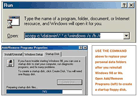
Windows 98 and Me is trickier than reinstalling XP and 2000, but in many ways
the process is the same: Follow all the steps in "Be
Prepared."
Reinstalling
Windows 98 and Me is trickier than reinstalling XP and 2000, but in many ways
the process is the same: Follow all the steps in "Be
Prepared."
My driver-copy batch file for Windows 98 and Me also
copies the data folders that reside inside C:\Windows to a backup folder named
'c:\datawin'. Because you must delete the old Windows folder before you install
the new one, this data must be moved to a safe place. The folders that must be
saved are All Users, Application Data, Desktop, Favorites, Local Settings,
Profiles, SendTo, and Start Menu (not every installation has all of these
folders). C:\My Documents doesn't need to be copied to a different
location--it's already outside the Windows folders. If the PC has multiple
users, everyone's individual My Documents folder is actually inside
C:\Windows\Profiles, which my batch file will back up.
Start With a Floppy
You need a startup floppy to reinstall Windows 98 and Me.
To create one, have a blank, formatted floppy disk ready and select Start,
Settings, Control Panel, Add/Remove Programs. Click Startup Disk, Create
Disk, and follow the prompts.
Next, reboot your system from that floppy. At the Startup
Menu, select Start computer with CD-ROM support. Once DOS has loaded with
a generic CD-ROM driver, put your Windows CD-ROM into the drive. At the DOS
prompt, type dir x:,
where x is your CD-ROM drive letter. This letter is probably one up from
the CD drive letter that you're used to, so if Windows sees your CD drive as D:,
it will probably be recognized as E: here. (Windows Me will show you the correct
drive letter on screen.) Type c:\windows\command\deltree
/y c:\windows (don't forget the spaces after "deltree"
and "/y") and press Enter. Once you're back at the A>
prompt, type x:setup,
where x is again the CD drive letter, and press Enter. Follow the
prompts. Don't forget to remove the floppy before Windows reboots.
(If your PC was set up for multiple users, select Start,
Settings, Control Panel, Users (in 98) or Start, Settings, Control Panel,
view all Control Panel options, Users (in Me). Use the exact log-in names
that were used previously; each is now the name of a folder inside c:\datawin\profiles.
Once you've re-created each user log-in, reboot and press Esc to bring
you to Windows without logging you in as a specific user.)
Finally, select Start, Run, type xcopy
c:\datawin\*.* c:\windows /s /h /r, and press Enter. If
you're prompted about overwriting a file, press a
for 'All'. When xcopy is finished, reboot your PC and follow the instructions in
"Finish
the Job."
The
A clean Windows reinstallation involves deleting
everything in your system's Windows folder, including your hardware's device
drivers. These batch files copy your drivers to another folder on your hard
drive that won't be deleted by the Windows revamp. The file for PCs running
Windows 98 or Me also copies your data from the Windows folder to a safer
location. (Note that this step isn't necessary when reinstalling Windows 2000
and XP because these operating systems don't store user data in the Windows
folder.)
Click the link below for your version of Windows to
download the file to your hard drive. You can place the file on your desktop or
in any other convenient location. After the download is complete, double-click
the file to open a DOS (or Command Line) window. Read the message onscreen, and
then press any key to continue.
Commands and file names (mostly file names) will scroll
up the screen. Close the window when the scrolling has stopped. See "Start
Anew in Windows" for instructions on reloading the drivers (and user
data in Windows 98 and Me) once the operating system has been reinstalled.
The
file for Windows 98 and Me
New-Look Windows the
Transparent windows, lightning-fast file searches, a
three-dimensional workspace--these are a few of the interface enhancements
promised in the next version of Windows, code-named "Longhorn." But
you don't have to wait the year-plus it will take for these features to arrive
in the new OS. Ingenious software developers have added these and other useful
new tools to the current version of Windows. Here are four of our favorites, two
free, and two others only $20 each:
Idea2's free Desktop
Sidebar puts the information you need right on your desktop.
Actual Tools' $20 Actual
Transparent Windows lets you see through the windows open on your screen.
Spatial Research's $20 Spaces
converts your desktop into a three-dimensional space.
Copernic Technologies' free Copernic
Desktop Search makes finding your files a breeze.