
Gunk Busters!
Get your PC running like new with these easy tips for
clearing the crud out of Windows, applications, and hardware.
Woody Leonhard
From the January 2006 issue of PC World magazine
You're not imagining things: It is indeed taking you
longer to load Windows, browse the Web, and run your applications. It's as if
your car took longer to get you to work as it got older. You wouldn't stand for
such diminishing performance from your automobile, so why abide PC slowdowns?
Unless you built it yourself, your PC began picking up
unwanted junk long before you first connected to the Internet. The people who
made that shiny new PC loaded it with useless, bandwidth-clogging software at
the start. And it only gets worse as you install programs, whether via download
or off a disc.
The following tips will help you scrape the crud out of
Windows and your applications to get your PC running better than it did
when it was new. And "Optimize
Your Notebook"
will show you how to wipe out power-draining settings in your portable. Of
course, stray software isn't the only thing that clutters your computer life;
actual dust, dirt, and debris can create problems too. Answer Line guru
Lincoln Spector offers advice
for removing
the physical gunk from your PC's dirtiest hardware components.
In This Article:
Cleaning Windows
Windows picks up lint like my aunt's wool sweater. But
before you clean up, scan your system for viruses, spyware, and other
interlopers. Then remove the Windows components and applications you don't need.
And finally, make sure you have the tools and settings in place to keep digital
detritus from reinsinuating itself into your PC.
Eliminate Pests
Start by visiting the Windows Update site to make sure
you have the latest patches for your version of the OS. Next, check your
antivirus and antispyware utilities for updates, and then run a complete check
of your system with each tool. (Be sure to read about our favorite
freebies in each category.) Once the scans come up clean, disconnect from
the Internet and any local networks you might be on, and shut down each of the
utilities' autoprotect features. This will make it easier to spot the CPU-cycle
robbers on your system.
Zap Unwanted Programs
 Many
of the programs that came preinstalled on your computer automatically launch
"helper" programs when Windows starts, often doing little more than
adding to the flurry of applets swirling around in the Windows atmosphere.
Many
of the programs that came preinstalled on your computer automatically launch
"helper" programs when Windows starts, often doing little more than
adding to the flurry of applets swirling around in the Windows atmosphere.
First, jettison unneeded Windows components. In XP, click
Start, Control Panel, Add or Remove Programs, and choose Add/Remove
Windows Components in the left pane. (The steps are similar in older
versions of the operating system.) Two prime candidates for deletion are Games
(click Accessories and Utilities, Details, Games, Details, and uncheck
those you don't want) and MSN Explorer (simply uncheck it and step through the
wizard). When you're done, click Next and Finish.
You can remove well-behaved applications by using Control
Panel's Add or Remove Programs applet, but if the program has its own undelete
option (likely on its submenu in All Programs), use that. If the program still
appears in Add or Remove Programs after you do so, or if it doesn't have its own
undelete function, select it in the list of 'Currently installed programs',
click Remove or Change/Remove, and follow the instructions. Some
security programs have only a 'Change' option, requiring removal by their own
uninstall component.
Click Show updates at the top of this window to
see the various Windows and Office patches that have been added to your system.
If you delete a Windows or Office patch here, however, Windows concludes that
you want to undo the patch, rather than just remove the files. Rolling back
patches is risky. If you want to get rid of the backup files, read Lincoln
Spector's Answer
Line column from March 2005 to learn about a safe approach.
Sometimes programs remain in the Add or Remove Programs
list after they have been uninstalled. Others insist on running components even
after they've been removed, and icons for some "removed" programs may
continue to appear in your system tray (next to the clock), the Ghosts of
Applications Past.
When you encounter such a spectral program, click its Remove
or Change/Remove button again. Windows XP with Service Pack 2 may
recognize your second try as an attempt to remove the entry from the Add or
Remove Programs list, and fix the problem automatically. If that doesn't work,
shift Windows into Safe Mode: Restart your computer, hold down the <F8>
key, and choose Safe Mode. Use the Remove/Change option in Add or
Remove Programs once again. If that doesn't work either, haul out the heavy
artillery. While you can manually remove stuck entries by editing
the Registry, Microsoft has a much more thorough--and less dangerous--option
called the Windows Installer Cleanup Utility. Download
your free copy of this tool.
 Once
you've deleted all the programs you can live without, look for cycle-stealing
apps that run unnecessarily in the background on your system. The majority of
self-starting Windows processes, inscrutable though they may be, serve vital
roles. For example, if you press <Ctrl>-<Alt>-<
Once
you've deleted all the programs you can live without, look for cycle-stealing
apps that run unnecessarily in the background on your system. The majority of
self-starting Windows processes, inscrutable though they may be, serve vital
roles. For example, if you press <Ctrl>-<Alt>-<
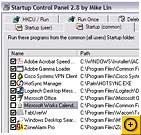
Mike Lin's free Startup
Control Panel lists all the programs that start automatically on your PC
(except the really sneaky ones). After you download and install the utility,
click Start, Control Panel, Startup, and choose one of the Startup tabs.
Uncheck the box next to an unwanted program to prevent it from launching when
Windows starts. Disabled programs appear on the Deleted tab, so you can bring
them back easily if you determine that you need them.
Always restart your machine after you've used Startup
Control Panel to make any changes to your Windows settings.
 Having
plenty of empty space on your hard drive is important for good Windows
performance, as it allows room for virtual memory (be sure to learn more about
tweaking Windows' memory
settings). Fortunately, clearing space on a drive is usually pretty easy.
For example, few people need anywhere near the hard-disk space that Windows sets
aside for the Recycle Bin--the default is 10 percent of the drive's total
capacity. That's 3GB of a 30GB hard drive. To make some room, right-click the Recycle
Bin, choose Properties, swing the slider down to 3 percent or less,
and click OK. That would still give you almost a gigabyte to temporarily
store deleted files on our example 30GB hard drive, which should be plenty under
most circumstances.
Having
plenty of empty space on your hard drive is important for good Windows
performance, as it allows room for virtual memory (be sure to learn more about
tweaking Windows' memory
settings). Fortunately, clearing space on a drive is usually pretty easy.
For example, few people need anywhere near the hard-disk space that Windows sets
aside for the Recycle Bin--the default is 10 percent of the drive's total
capacity. That's 3GB of a 30GB hard drive. To make some room, right-click the Recycle
Bin, choose Properties, swing the slider down to 3 percent or less,
and click OK. That would still give you almost a gigabyte to temporarily
store deleted files on our example 30GB hard drive, which should be plenty under
most circumstances.
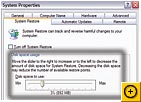
Another storage profligate is Windows' System Restore,
which uses a ton of hard-drive space to hold restore points that you will never
need. To trim them, right-click My Computer, choose Properties, System
Restore, drag the slider down to 3 percent or less, and click OK.
That should be sufficient for at least two restore points on our example 30GB
drive.
Now you should run Windows' Disk Cleanup: Click Start,
Run, type cleanmgr /sageset:99,
and press <Enter>. Check each type of file you want to look for (I
check them all), and click OK. Right-click the C: drive in My Computer
and choose Properties, Disk Cleanup. You'll see a list of a dozen or so
kinds of files that you can delete. Check the categories you don't need, click OK,
and then click Yes.
You may want to leave some entries unchecked, however.
The contents of your Temporary Internet Files folder, for example, can help
speed up Internet Explorer by reducing the amount of data you have to download
to view Web pages that you return to frequently (see "Shake
Out Internet Explorer" for more). Also, if you delete your Office Setup
files, some Office 2003 updates may not function properly (see AskWoody.com
for information about Microsoft's fix for the Office 2003 SP2 installer).
Once you've emptied the trash, restart your computer,
right-click your C: drive in My Computer, and choose Properties, Tools,
Defragment Now. In the Disk Defragmenter dialog box, click Analyze.
If the Analyzer reports that you need to defrag the drive, wait until you can
afford to leave your computer alone for a few hours before proceeding. In fact,
there is some disagreement as to whether defragging actually improves your
system's performance. The consensus at present, however, is that defragging your
hard drive periodically does indeed result in faster data accesses.
Automate Your Registry Scrubs
You could spend the next ten years fiddling with Registry
keys, cache parameters, menu delay settings, and a thousand other minute Windows
details. Or you can take advantage of the years of work that other folks have
devoted to the cause of achieving a more shipshape Windows. Two of my favorites
are Macecraft's $30 jv16
PowerTools and the Registry scanner in Iolo Technologies' $50 System
Mechanic utility suite. Both programs make it easy to clear the crud from
your Registry. (Note: The Registry is a terrible thing to muck up, so avoid
no-name Registry cleaners like the plague.)
Restrict Future Downloads
Now that Windows is spiffy, keep it that way by creating
a limited account for anyone who uses the machine but whom you can't trust to
download with discretion. Log on as an administrator and click Start, Control
Panel, User Accounts, Create a new account. (If you don't see this option,
your network administrator may have restricted your system.) Enter a name for
the account, click Next, choose Limited under 'Pick an account
type', and select Create Account. To give this account a log-in password,
click it in the list of accounts, choose Create a password, type the
password twice, enter a password hint (if you desire), and click Create
Password. Close the User Accounts dialog box when you're done.
Unencumbering Applications
Sooner or later, every application accumulates
gunk--whether useless files, obsolete add-ons, or intrusive settings that clog
the works or just get in the way. Scraping the barnacles off programs needn't be
a chore, however.
Ax Word's Old Recovered Files
Microsoft Word behaves like a pack rat. Not only will
cleaning house free disk space, but it will also help you avoid problems.
Whenever Word crashes, it leaves interim files with names
like '~DFC15F8.TMP' on your hard drive. Running Windows' Disk Cleanup will sweep
away most of these files (see "Whip
Disks Into Shape"), but you can also delete them en masse. Begin by
closing all running programs. Then click Start, Search, choose All
files and folders (if necessary), enter ~*.tmp in the box labeled 'All or part of a file
name', select Local Hard Drives (C:) under 'Look in', and click Search.
When the search is complete, press <Ctrl>-A to select all the
files, and then press <Delete>.
By default, Word saves AutoRecover copies of open files
every 10 minutes. As Word recovers from a crash, it offers to retrieve the files
that you had open at the fateful moment. Sometimes AutoRecover files remain on
your hard drive long after they're needed--representing a potential security
risk. To make sure all your old AutoRecover files bite the dust, open Word and
click Tools, Options, File Locations. Double-click AutoRecover files,
right-click the resulting folder (it's probably named '\Word\STARTUP'), and
choose Explore. Click the up arrow to move to the parent directory, and
delete all files with names that end in '.asd'.
Obsolete add-ins can slow Word to a crawl. To get rid of
them, click Tools, Templates and Add-Ins, and look for the interlopers
listed under 'Global templates and add-ins'. Select the ones you no longer need
and click Remove. If the Remove button is grayed out, close Word and open
your Word Startup folder (you'll probably find it at C:\Documents and Settings\username\Application
Data\Microsoft\Word\Startup, where username is your log-on ID). Change
the name of each unwanted file so that it doesn't end in '.dot' (rename 'oldmacros.dot',
for example, as 'oldmacros.dot.save'); when you restart Word, all of the
unneeded add-ons will be gone.
 One
good thing about Microsoft's Outlook e-mail and contact manager is that the
program stores everything in a single giant .pst file. The bad thing about
Outlook is that this file is nearly impenetrable and tremendously difficult to
clean out.
One
good thing about Microsoft's Outlook e-mail and contact manager is that the
program stores everything in a single giant .pst file. The bad thing about
Outlook is that this file is nearly impenetrable and tremendously difficult to
clean out.
Outlook 2003's .pst files are more reliable than their
counterparts in Outlook 97, 2000, and 2002 (visit Microsoft
Help and Support for more on this subject). If you upgraded to Outlook 2003
from an earlier version, you may still be using the old .pst file. Updating to
the Outlook 2003 format can save you loads of misery. Unfortunately, doing so
takes time.
To determine which type of .pst file your copy of Outlook
2003 is using, right-click Personal Folders in the left pane under All
Mail Folders, choose Properties for "Personal Folders", and
click Advanced. If the Format box says 'Personal Folders File (97-2002)',
you have the old version. To convert it, close Outlook and navigate to your
outlook.pst or mailbox.pst file. It's probably at C:\Documents and Settings\username\Local
Settings\Application Data\Microsoft\Outlook (or a variation of this file path),
where username is your log-on name.
If it's not there, open Outlook and click File, Data
File Management. A box lists your Archive and Personal Data Folders. Click Settings
to see their location, or choose Open folder to display the contents in
an Explorer window. (Be sure to close Outlook before proceeding.) Once you've
found the file, right-click it and choose Rename. Call the file outlook.old.pst.
When you restart Outlook, the program will bellyache that
it can't find its .pst file. Click OK. Outlook will offer to create a new
Personal Folders file. Select Open and OK. When Outlook finally
comes up for air, click File, Open, Outlook Data File, select your
outlook.old.pst (or mailbox.old.pst) file, and click OK once more. Now
click the plus sign next to the Personal Folders entry at the bottom of the left
pane; you'll find all of your old Outlook data there. Click and drag the files
you want to keep from these folders to their analogs in your new Inbox,
Contacts, Calendar, Sent Items, and maybe even Deleted Items folders. You can
leave the old Personal Folders open, or right-click it and choose Close.
(If Outlook doesn't recognize your Contacts list, follow Microsoft's instructions
for resetting your profile.)
Update: Some people have reported a problem
when using the above tip in which the new Outlook 2003 file appears in the old
Outlook 97-2002 format. If you encounter this glitch, there's a workaround
to replace your old outlook.pst file with the improved Outlook 2003 version.
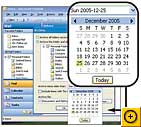
You can improve the performance of any version of Outlook
by archiving old messages: Click File, Archive, choose a folder, pick a
date in the 'Archive items older than' drop-down calendar, and click OK.
See Microsoft's site for more on modifying Outlook's automatic
backup settings.
Next, run Outlook's Inbox Repair Tool to make sure that
your .pst file is working well. With Outlook closed, click Start, Search,
choose All files and folders (if necessary), type scanpst.exe,
and press <Enter>. Double-click the file in the search results
window, click Browse, navigate to your .pst file as described above,
select it, and click Open, Start. If the Inbox Repair Tool finds errors
(it probably will), check Make backup of scanned file before repairing
and click Repair. Click OK when the repairs are complete.
Now right-click Personal Folders, choose Properties
for "Personal Folders", click the Advanced button under the
General tab, and select Compact Now. If your .pst file is old or very
scattered, the compression can take a while. When it's done, click OK
twice.
 Clearing
the history files, cookies, and cache in Internet Explorer is simple: Click Tools,
Internet Options, and then choose Delete Cookies and Delete Files
under Temporary Internet Files on the General tab, or Clear History under
History. But don't expect your cleanup to last long.
Clearing
the history files, cookies, and cache in Internet Explorer is simple: Click Tools,
Internet Options, and then choose Delete Cookies and Delete Files
under Temporary Internet Files on the General tab, or Clear History under
History. But don't expect your cleanup to last long.
If your computer has a 150GB hard drive, it may not
matter to you that IE uses 3GB worth of temporary files. Conversely, you may
gladly tolerate slightly slower browsing to save space on a 10GB drive.
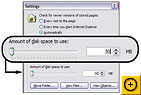
To curb IE's voracious storage appetite, click Tools,
Internet Options, choose the Settings button under the General tab,
and run the slider down to 20MB or 30MB (or up to maybe as much as 100MB if you
have a horrendously slow dial-up Internet connection). Click OK twice to
finish the job.
Power Tips: Optimize Your Notebook
Notebook garbage is like desktop garbage, only worse: All
that excess activity saps your system's resources. Anything that unnecessarily
drains your laptop's battery deserves to get dumped. A quick tune-up can make
any notebook more energy efficient.
A Power Makeover
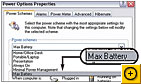 Choose
the right power scheme for your work style (or make a scheme of your own). Click
Start, Control Panel, Performance and Maintenance (if necessary), Power
Options. Under Power Schemes, pick Max Battery, and click OK.
This setting shuts off your monitor after 1 minute and puts your notebook in
standby if you don't use it for 2 minutes. If that is too soon, repeat the steps
and choose the Portable/Laptop power scheme, which goes into standby
after 5 minutes. (Note that some battery-saving modes may slow your system
down.)
Choose
the right power scheme for your work style (or make a scheme of your own). Click
Start, Control Panel, Performance and Maintenance (if necessary), Power
Options. Under Power Schemes, pick Max Battery, and click OK.
This setting shuts off your monitor after 1 minute and puts your notebook in
standby if you don't use it for 2 minutes. If that is too soon, repeat the steps
and choose the Portable/Laptop power scheme, which goes into standby
after 5 minutes. (Note that some battery-saving modes may slow your system
down.)
Another way to reduce your notebook's power consumption
is by dimming the screen. Unfortunately, every notebook manufacturer seems to
have a different technique for screen dimming, so you may have to go digging for
your owner's manual. (Some laptop keyboards have keys with light icons and
up/down arrows.) My rule of thumb: Set your screen to the dimmest setting you
can stand, and then bump it up one step. Ultimately you're better off draining a
little more of the battery than straining your eyes.
A notebook's built-in wireless card sucks up power as it
looks for access points, so disable yours when you're not working on a network.
Other laptop power-grabbers that you should unplug when you don't need them are
USB devices and PC Cards.
Clean Out the Background
Give autostart programs the heave-ho when you're running
on battery power. In addition to following the steps in "Poke
Autostart Porkers,"
right-click the icons in your system tray (near the clock) and shut down the
programs you don't need. They'll start up again the next time Windows loads.
Standby or Hibernate?
Windows XP's standby mode stops your hard drive and
monitor, but everything currently in your system's memory stays there, using a
little trickle of power. Hibernation mode writes everything in memory to the
hard drive and shuts down your machine completely. Windows springs back quickly
from standby mode, but it takes much longer to wake up from hibernation.
However, if your notebook's battery dies while in standby, you lose any changes
to your open files that you haven't saved.
To put your notebook into standby mode, click Start,
Turn Off Computer, Stand By. To make the unit hibernate, choose Start,
Turn Off Computer and click Hibernate (you may have to hold down the <Shift>
key to see this option). If it won't hibernate, click Start, Control Panel,
Performance and Maintenance (if necessary), Power Options, Hibernate,
and check Enable hibernation. To restart your system from either mode,
press the power button.
If your computer has a "Sleep" button, or if it
turns off when you close the lid, click the Advanced tab to find options
for adjusting these settings in the Power Buttons box.
-- Woody Leonhard
Cleaning Tips: Grime Fighters
The digital detritus slowing Windows' performance is
virtual dirt; the stuff inside your keyboard and mouse, or on the surface of
your monitor and optical discs, is the real thing. Here's how to get rid of
accumulated material that can literally gum up the works.
Beneath the Keys
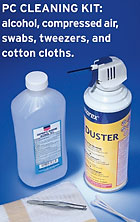 The
dirt, dust, and crumbs that keyboards pick up so easily make for rough typing.
To clean your keyboard, you'll need a can of compressed air (available at any
computer store for about $5); a bottle of isopropyl alcohol (about $2 at any
drugstore); cotton swabs; and two clean, soft cotton cloths (a cut-up old
T-shirt will do).
The
dirt, dust, and crumbs that keyboards pick up so easily make for rough typing.
To clean your keyboard, you'll need a can of compressed air (available at any
computer store for about $5); a bottle of isopropyl alcohol (about $2 at any
drugstore); cotton swabs; and two clean, soft cotton cloths (a cut-up old
T-shirt will do).
Unplug the keyboard and bring it outside (or place it on
newspaper). Turn it upside down and tap it gently to knock out loose dirt. Then
turn it vertical and spray compressed air between the keys. Finally, turn the
keyboard upside down, shake it again, and slap the bottom. Repeat this
spray-shake-slap routine until nothing comes out.
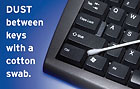 With
the keyboard still unplugged, put some alcohol on one of the cloths and wipe the
surface clean. Dip a cotton swab in the alcohol and clean between the keys where
the cloth can't reach. Alcohol evaporates pretty quickly, but if necessary dry
the keyboard with the other cloth.
With
the keyboard still unplugged, put some alcohol on one of the cloths and wipe the
surface clean. Dip a cotton swab in the alcohol and clean between the keys where
the cloth can't reach. Alcohol evaporates pretty quickly, but if necessary dry
the keyboard with the other cloth.
Under the Mouse Roller
If your mechanical mouse stops rolling properly, cleaning
the inside rollers should make it as good as new. All you need to get back on a
roll are a can of compressed air and possibly tweezers.
Unplug the mouse and turn it upside down. You'll see a
little plastic disk with a hole in the middle. The roller ball shows through the
hole. Turn the disk in the direction indicated by the arrows (counterclockwise
on Microsoft mice), remove the disk, and take out the ball.
You'll see two or three rollers inside. Lint and dirt on
these rollers are what make your mouse misbehave. Blow some compressed air onto
the rollers to loosen the gunk, which tends to clump into big pieces. Then pull
the stuff off with your fingers or with tweezers. Clean any surface oils off the
ball. Reassemble the mouse.
Between Eyes and Monitor
What's that weird character on your worksheet? Is it a
euro? An ampersand in some strange script font? No, it's a little dust ball
clinging to your screen. Cleaning a CRT monitor is pretty easy: Just turn off
the monitor, slightly moisten a soft cloth with water (never use glass cleaner),
rub the screen, and wipe it dry. Removing dirt and grime from an LCD is a bit
more complicated. You'll need a microfiber cloth (such as those sold or given
away by opticians for cleaning eyeglasses), as well as a few ounces of a mixture
that's half water and half isopropyl alcohol. Turn off the monitor (if it's on a
notebook, turn off the PC), lightly moisten the cloth with the fluid, and wipe
carefully. With both CRTs and LCDs, wait a few minutes after you finish cleaning
before turning the monitor back on.
Disc-Washing Machine
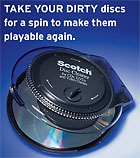 A
single speck of dirt on the surface of a CD or DVD can interrupt a song, a
movie, or a program installation. If wiping the disc gently from the center out
with a dry cotton cloth doesn't do the trick, break out the hardware: For
cleaning optical discs, try a device such as 3M's $13 Scotch
CD and CD-ROM Cleaner (which also cleans DVDs). The hand-cranked device
comes with a spray bottle of cleaner. Put a little of the cleaner on your dirty
disc, insert the disc (label-side-down) into the device, close the top, and turn
the crank five times; then remove the disc, and let it air dry for a minute or
so.
A
single speck of dirt on the surface of a CD or DVD can interrupt a song, a
movie, or a program installation. If wiping the disc gently from the center out
with a dry cotton cloth doesn't do the trick, break out the hardware: For
cleaning optical discs, try a device such as 3M's $13 Scotch
CD and CD-ROM Cleaner (which also cleans DVDs). The hand-cranked device
comes with a spray bottle of cleaner. Put a little of the cleaner on your dirty
disc, insert the disc (label-side-down) into the device, close the top, and turn
the crank five times; then remove the disc, and let it air dry for a minute or
so.
--
Clear Cobwebs From Outlook: Glitch Workaround
If, in following the original
tip for updating your outlook.pst file, you have encountered a bug that
makes your old Outlook data temporarily unavailable, follow these lengthy steps
to replace your old .pst file with the improved Outlook 2003 version.
Start Outlook 2003. Click File, New, Outlook Data
File. In the 'New Outlook Data File' dialog box, choose Office Outlook
Personal Folders File (.pst) and click OK. Type in a name for your
new Outlook file--say, outlook.new.pst--and
click OK. In the 'Create Microsoft Personal Folders File' dialog box,
don't change anything, just click OK. Close Outlook 2003.
Click Start, Search to find your outlook.pst file.
When Windows Search finds it, right-click on the file and choose Open
Containing Folder (it's probably in C:\Documents and Settings\username\Local
Settings\Application Data\Microsoft\Outlook). Right-click on outlook.pst
and rename it to outlook.old.pst.
Right-click on outlook.new.pst and rename it outlook.pst.
Close Windows Explorer.
Click Start, Control Panel. Click User Accounts
and then click Mail down at the bottom. Click the Data Files
button. (See what I mean about this being lengthy?) In the 'Outlook Data
Files--Outlook' dialog box, find the line named 'Personal Folders' that points
to the outlook.new.pst file. It's probably the last one, but you should make
absolutely sure by clicking on the line and clicking Show Details. Once
you've found the line for the Personal Folders/outlook.new.pst file, click on it
once and then click the Remove button. Click Close twice to go
back to Windows.
Start Outlook 2003 again. You have an empty 'Personal
Folders'--but it's in Outlook 2003 format. (Whew.) Click File, Import and
Export. Choose Import From Another Program or File and click Next.
Under 'Select File Type to Import From', pick Personal Folder File (.pst)
and click Next. Click the Browse button. Click on your outlook.old.pst
file, and then click Open and Next. Under 'Select Folder to Import
From', pick Personal Folders (in other words, you want to import
everything from outlook.old.pst). Make sure Include Subfolders is
checked. Click the button marked Import Items Into the Same Folder in,
and make sure Personal Folders is in the drop-down list. Click Finish.
Go out and have a cup of coffee or two. By the time you
come back, everything will be transferred over, and your new outlook.pst file
will be in good shape. Close Outlook and restart Windows, just to make sure
everything gets cleaned up, and you're ready to roll.
If you have any problems with this (or any other Windows or Office conundrum, for that matter), drop by AskWoody.com and click Ask a Question. You can also send e-mail to woody at askwoody dot com (replace "at" and "dot" with "@" and ".", with no spaces).