
10-Step Security
If you have about an hour, you can batten down your
machine's hatches against Net threats new and old. Here's how.
Dennis O'Reilly
From the November 2005 issue of PC World magazine
Each new wave of computer viruses, spies, and spam may
have you ready to dust off your typewriter, but PC security can be effective
without being a chore. To keep your computing safe from current and future
threats, we've distilled our security advice down to the basics. These ten quick
and easy tips will help protect your hardware, software, and data.
1. Patch automatically: Ensure Windows is set to
update itself. In XP, click Start, Control Panel, Security Settings (if
you're in Category view), Automatic Updates. In 2000, choose Start,
Settings, Control Panel, Automatic Updates. In both versions, verify that
'Automatic (recommended)' is selected. You can also have Windows notify you
before it downloads an update, or you can install the update manually. (The
steps and options are only slightly different in Windows 98 and Me.)

2. Don't wait for Windows: If your PC has been off
for more than a few days, don't wait for Windows' automatic update to kick in.
Make the Windows Update
site your first Internet stop. Also, there may be a lag between when a patch is
available and when Windows Update pushes it to you. Microsoft releases Windows
patches on the second Tuesday of each month, so to be safe check for updates
manually every couple of weeks. And don't forget to set your antivirus and anti-spyware
tools to update automatically (or check weekly for updates yourself).
3. Use XP's security monitor: Windows XP Service
Pack 2's most welcome addition is the 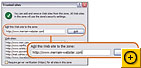 XP
SP2 Security to Your Advantage" for more). We recommend
that you disable the XP firewall and instead use Zone Labs' (ZoneAlarm)
or another third-party firewall program that protects both ways.
XP
SP2 Security to Your Advantage" for more). We recommend
that you disable the XP firewall and instead use Zone Labs' (ZoneAlarm)
or another third-party firewall program that protects both ways.
4. Make your file extensions visible: Some viruses
masquerade as harmless file types by adding a bogus extension near the end of
their name, as in "funnycartoon.jpg.exe," in hopes your system is set
to hide such extensions (the default in Windows XP and 2000)--you see '.jpg' but
not '.exe'. To make these troublemakers easier to spot, open Windows Explorer or
any folder window and click Tools, Folder Options, View. Ensure that the
option 'Hide file extensions for known file types' is unchecked.
Bonus Tip 1: To get the most complete picture of
your Windows setup, check Show hidden files and folders and uncheck Hide
protected operating system files (Recommended).
Bonus Tip 2: Click here
to play Microsoft's video guide to Windows XP security settings.
5.
Keep Internet Explorer safe: Many people find IE 6's Medium security level
too obliging to ActiveX controls and other small programs, or scripts, that the
browser runs on your PC. ActiveX and JavaScript enable such useful Web features
as order forms and security scans, but they also may run malicious code and give
attackers access to your system. To make IE safer, click Tools, Internet
Options, Security, Custom Level, select High from the drop-down menu
at the bottom of the Security Settings dialog box, and click Reset, Yes, OK.
Unfortunately, setting IE to the High security setting
can lead to the browser's unleashing a fusillade of warnings and permission
pop-ups every time you visit a site. The solution is to add the sites that you
access often to IE's Trusted Sites list: Choose Tools, Internet Options,
Security, click the Trusted Sites icon, and then click the Sites
button. Enter the Web address, click Add, and repeat as necessary (see
the Trusted Sites screen below). Be sure to uncheck Require server
verification (https:) for all sites in this zone. When you're finished,
click OK twice.
6.
Make Firefox more secure: The only way to block JavaScripts on a
site-by-site basis in the Mozilla Foundation's free Firefox browser is to
download and install the NoScript
add-in that was created by Giorgio Maone. NoScript places a warning bar at the
bottom of all the Web pages you visit that use JavaScript. Click the bar to see
options for allowing scripts on the site (permanently or temporarily), blocking
scripts, and other operations (see the NoScript screen below). The program can
also stifle Flash animations and other Firefox plug-ins, but keep in mind that
going Flash-less means you'll be missing out on some of the Web's richest
content (along with all of those great dancing ads). Although NoScript is
freeware, the author does accept donations at www.noscript.net.
7. Handle e-mail links with care: If a virus
infects your PC, chances are good it arrived piggybacked on e-mail. To reduce
your risk of an e-mail-borne infection, don't click links in suspicious messages
(the text in the message may mask the actual Web address). Instead, enter the
URL in your browser's address bar manually, or go to the site's home page and
then navigate to the page in question.
8. Scan attachments for viruses: Run each of the
e-mail attachments you receive through your antivirus software before you open
them. Rather than double-clicking the attachment to open it instantly, save the
file to a drive on your PC, open Windows Explorer, right-click the file, and
choose the option to scan it for viruses. (Better yet, set your antivirus
software to scan incoming and outgoing e-mail automatically.)
9. Close the preview pane: Some maleficent
messages need only be opened in your e-mail program's preview window to do their
dirty work. That's why we recommend that you close the preview pane in all of
your inboxes. In Microsoft Outlook 2003, click View,
10. Read your mail in plain text: Since many
e-mail pests rely on HTML code to achieve their nefarious goals, you can stop
them in their tracks by viewing your messages as plain text. In Outlook 2003,
click Tools, Options, Preferences, E-mail Options and check Read all
standard mail in plain text. In Outlook Express 6, choose Tools, Options,
Read and click Read all messages in plain text. In Mozilla
Thunderbird, select View, Message Body As, Plain Text.
Security Tool Kit
A well-stocked PC security toolbox goes beyond the basics
of firewall and antivirus software to include protection from phishers and
snoops as well. Bolster your system's defenses with these security utilities.
Firewall: ZoneAlarm,
free (for individuals and not-for-profit charities), Zone Labs
Antivirus: AVG
Anti-Virus System, free (for noncommercial use), Grisoft
Anti-spyware: Spy
Sweeper 4, $30, Webroot Software; see review
in "Best Defenders"
Antiphishing: Anti-Fraud
Toolbar, free (currently in beta), Cloudmark
Encryption: PGP Desktop 9, $199 or $70 annual subscription, PGP
Wireless Safety
Encrypt your Wi-Fi network: When you install a wireless network, it's tempting to keep the vendor's default network name and leave the network unencrypted. But doing so is an open invitation to your neighbors and anyone else within range to help themselves to your Internet connection. Open your network's configuration program to rename your network and apply Wi-Fi Protected Access (WPA) encryption. And check the maker's Web site regularly for driver and security updates.
A PC World Special Report
 The
New Security War: See the Complete Special Report
The
New Security War: See the Complete Special Report
Best
Defenders and Spy
Sweeper Leads the Field (chart)
The
Hidden Money Trail
Privacy
in Peril
Is
the Net Doomed?
Threat
Alert: Spear Phishing
Threat
Alert: Antivirus Killers
Threat
Alert: Instant Messaging Attacks
 10-Step
Security
10-Step
Security
Security
by the Numbers
More
Security Resources on the Web
Also See Our In-Depth Online Series
Web of Crime
Senior Associate Editor Dennis O'Reilly edits the Here's
How section.
Illustration by: Stuart Bradford
Related Topics: E-Mail
Security, Browser
Security, Network
Security, Maintenance/Management,
Tips: Windows Tips